
 Fennick
The Library and Tasks
Two pages in the sidebar gather blocks from the whole notebook: Library holds every page and entity, and Tasks every task.
Both work the same way. Each has a cover and an icon (point above the title for Add icon and Add cover), its views as tabs, a search box, and a list of filters on the left.
The Library
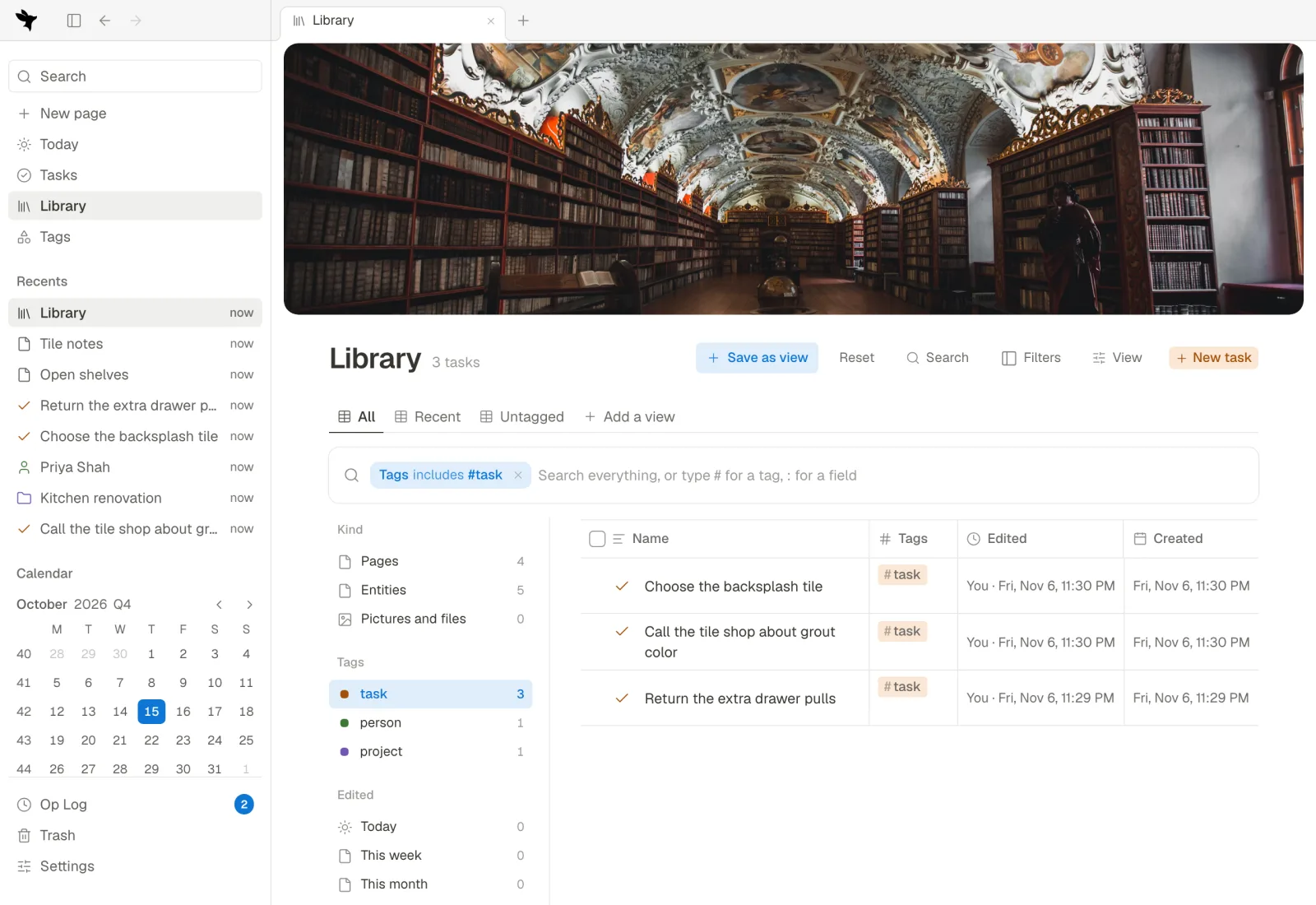
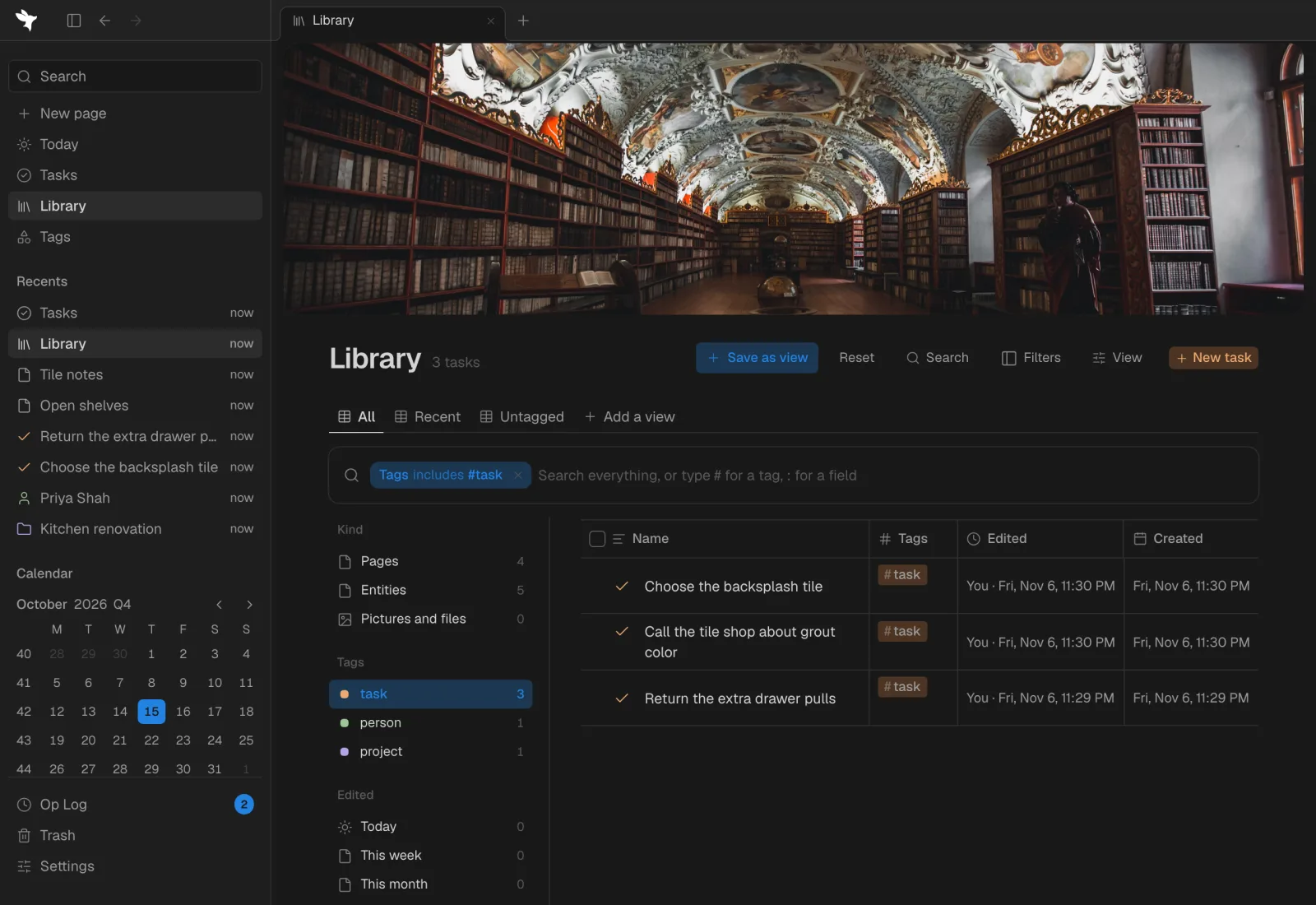
The Library lists every page and every entity, in a Table with Tags, Created and Edited. The box at the top of the table picks every row the view shows; then act on them all at once from the bar that comes up.
- Search: type to look through the names and words of everything. Type
#and a tag's name to filter by that tag, or a field's name and:to filter by that field. - Filters shows or hides the list on the left: Kind (pages, entities, pictures and files), your tags, Edited today, this week or this month, and Needs care: untagged, linked nowhere, empty, and Maybe duplicates.
- Maybe duplicates lists names that are on more than one page or entity. Keep this one moves the others' blocks, tags, values and links onto it and puts them in the Trash. Replace with this one keeps it as it is: only what points at the others (mentions, field values, placements) points at it, and the others go to the Trash as they were. Undo puts them back. Pick 2 or more rows and Merge in the bar does the same as Keep this one. Under them, Might be the same lists names written differently (dots, case, accents or the order of the words: “Dr. Patel” and “Patel, Dr”) with the same three answers; Not the same takes a group off the list, and Fennick doesn't ask about it again on this device, nor in the Already here? note.
- Click a row (not its name) to see it in the Preview on the right: its cover, fields, first blocks and what links to it. J and K move down and up, X picks the row, Enter opens it and / goes to the search.
- Change the filters, sort or search and Save as view keeps them as a new tab. On a view you saved, Save and Reset keep or drop the changes.
The count beside the title says what the view shows, in your tag's own word: 13 books.
Tasks
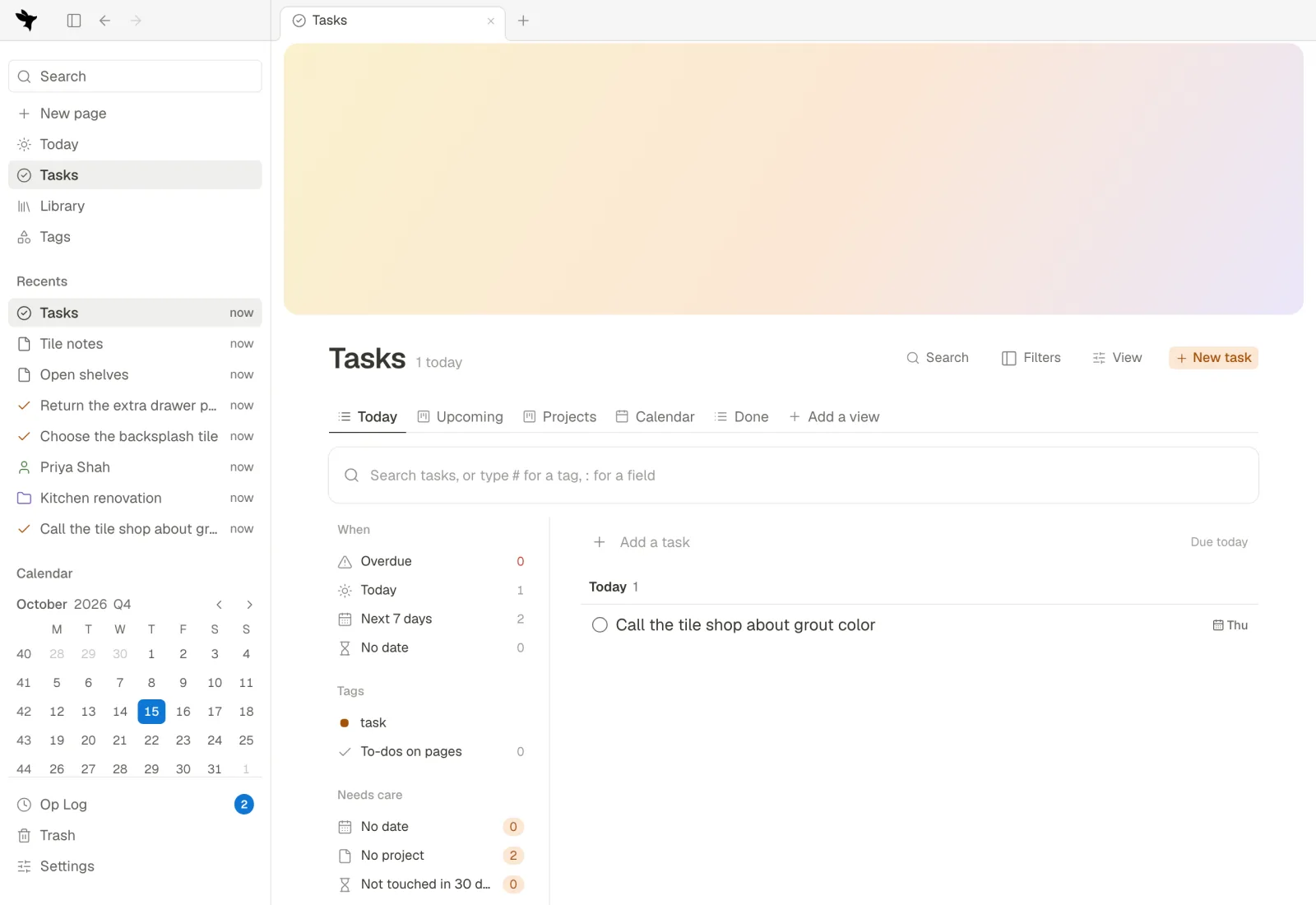
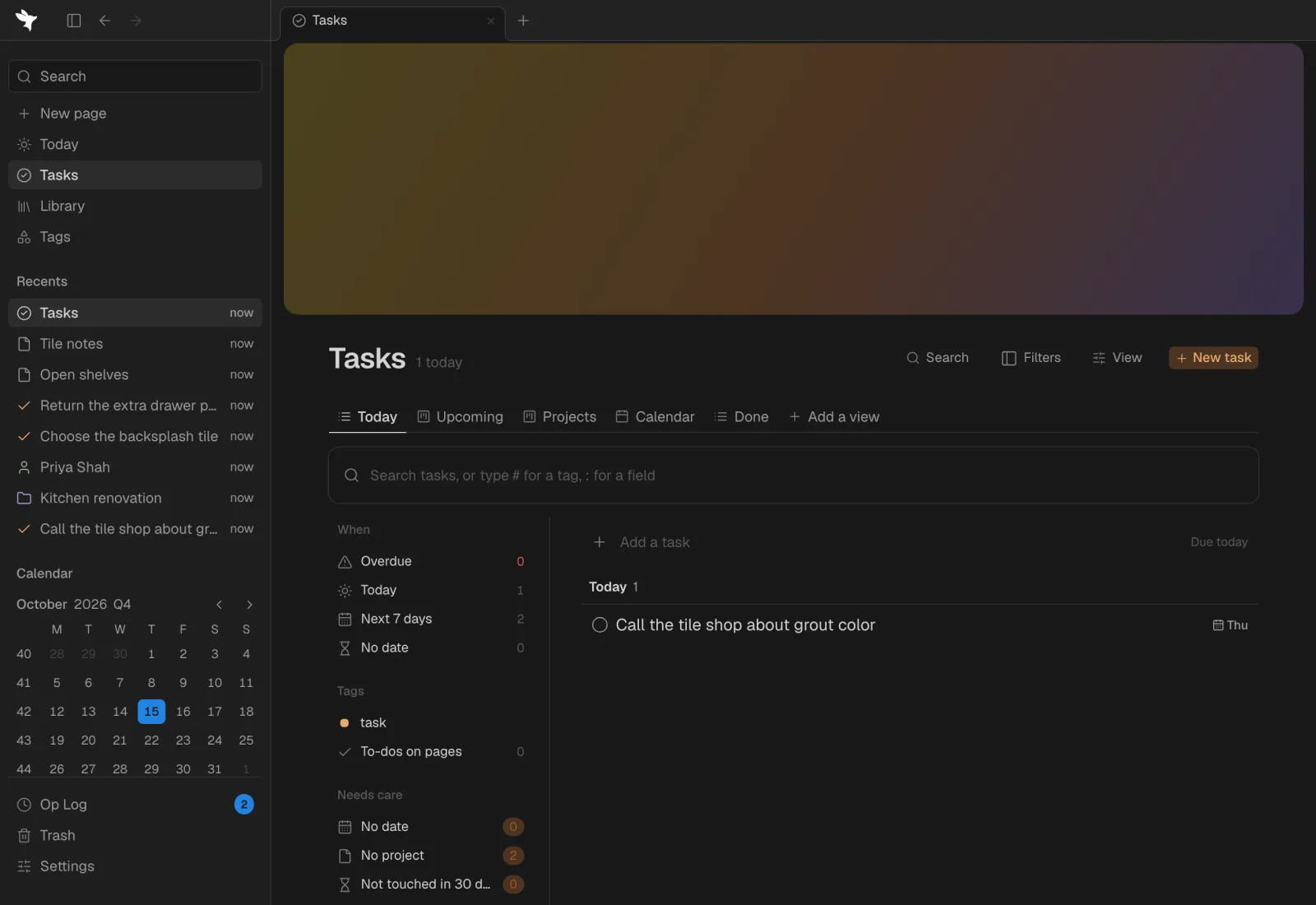
Tasks lists every to-do written on a page, and every entity tagged #task or with a tag that builds on #task (see A tag that builds on another). A tag with a box of its own that doesn't build on #task, such as a book's Read, isn't a task. A to-do is due on the day of the day page it is written on. An entity is due by its tag's field named Due, or by its first Date field when it has none. The title says how many are overdue and due today, and Tasks in the sidebar shows the overdue count in red.
- Today: one list, in three groups: Overdue, in red; then what is due Today; then Done today, folded. Each task shows its tags, its Project and its Due, and each is changed where it is: tap the date to move a task to another day. A to-do written on a day page shows that day; move it on its page. Add a task at the top makes a
#taskdue today. - Upcoming: a column for each of the next 7 days, then Later, up to 14 days on. Drag a task to another day to change its Due. The overdue button opens a column of what is overdue, to drag from.
- Projects: a column for each project with open tasks, No project first. Each project's bar says how much of it is done: the tasks written under the project and the tasks whose Project points at it, the same number as the project's Progress field. Drag a task to another column to change its project.
- Calendar shows tasks by Due, and Done lists what was finished, newest first.
A repeating task shows on the day of its next turn, so it is never overdue. On the left, filter by When, by project, by tag, or by what Needs care: no date, no project, or not touched in 30 days.
Each tab is a view like any other: rename it, change its filters or layout, or add your own with Add a view. See Views.