
 Fennick
Canvas
A canvas shows blocks as cards on a board, placed where you put them. Each card is the real block.
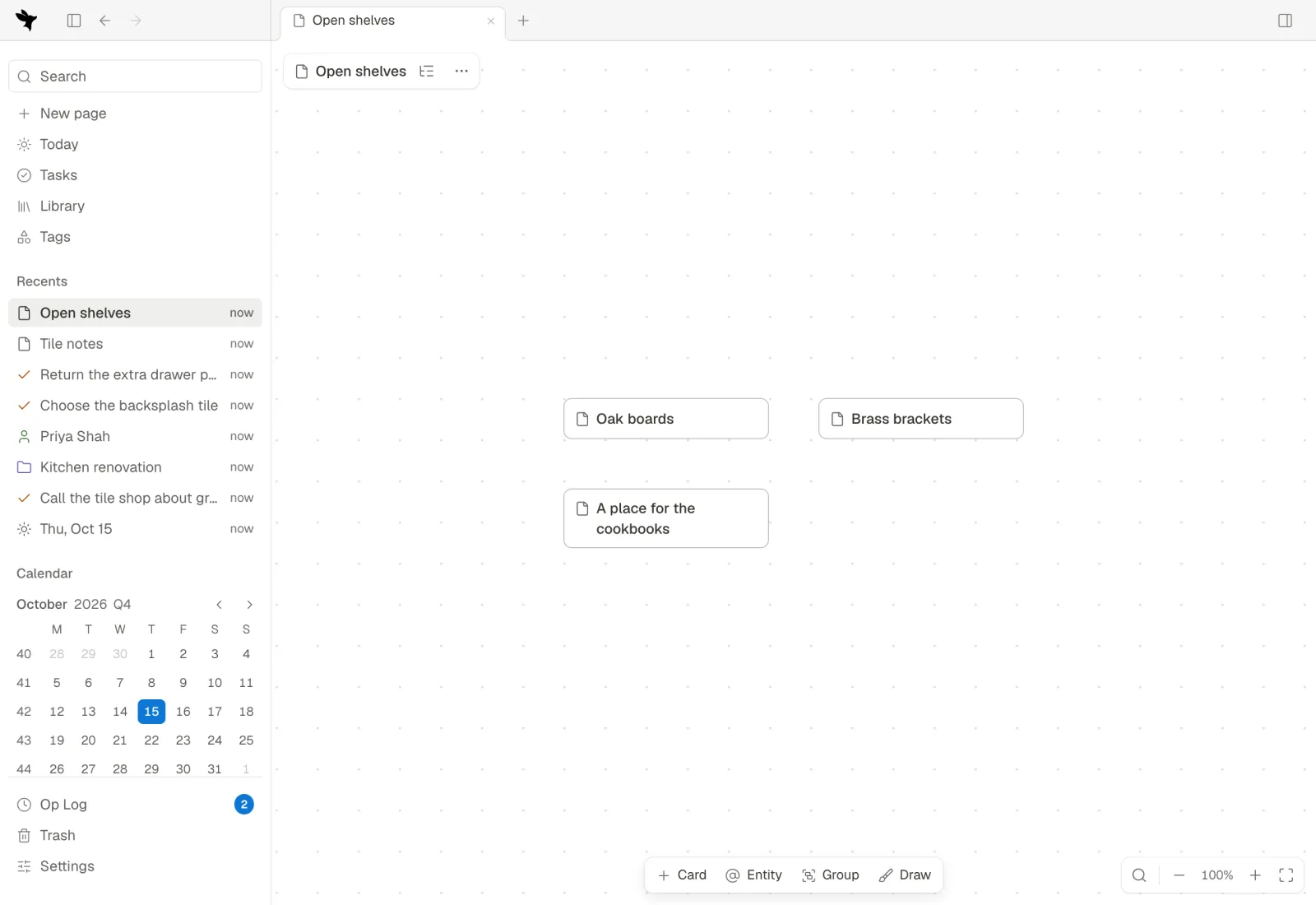
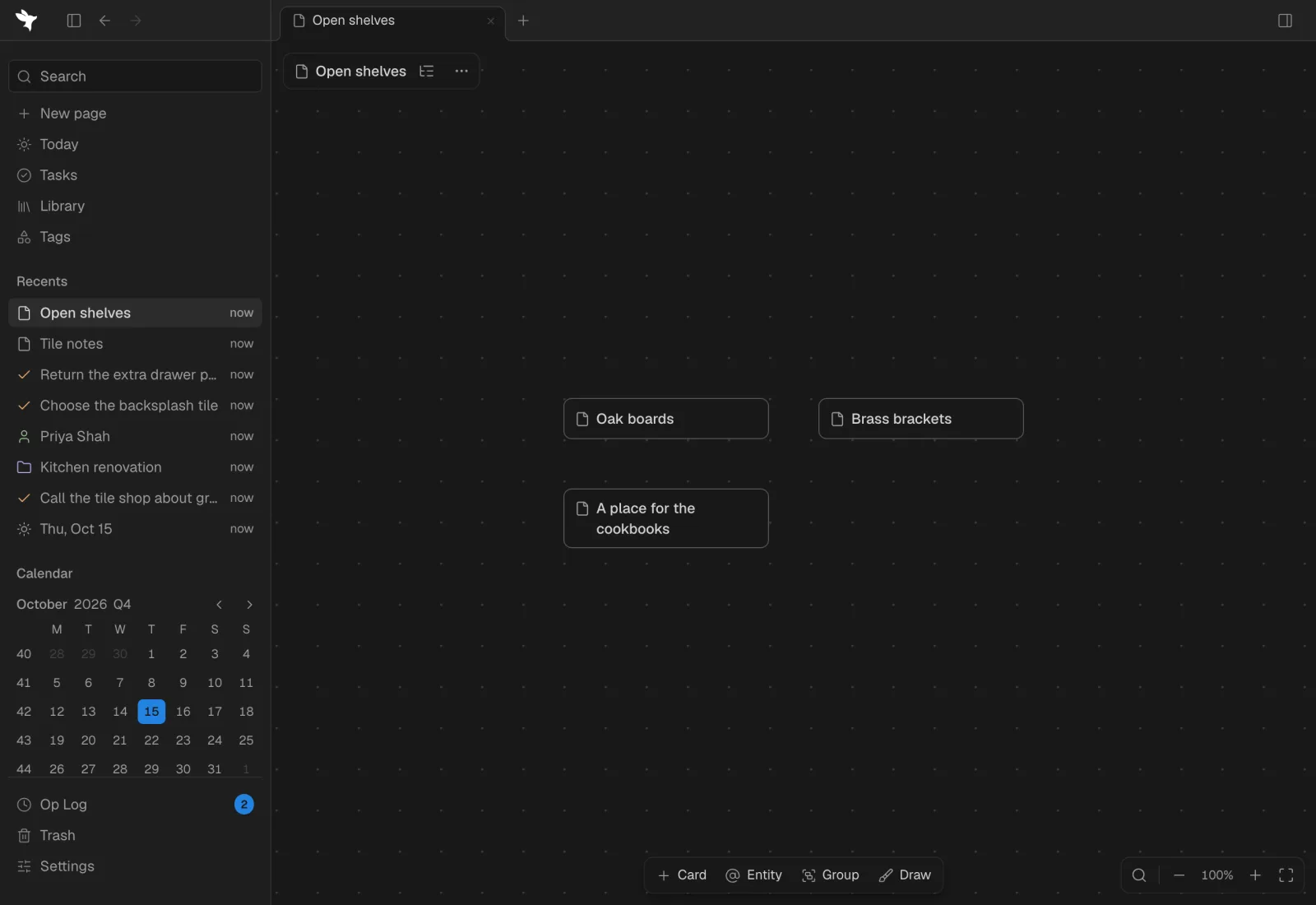
Open a canvas
- A page: click Show as canvas beside the page's star, or in its ⋯ menu pick View as, then Canvas. On the canvas, Show as page by its name goes back.
- A tag: on its page, Add a view, then Canvas. A card for each entity with the tag.
- A query: click the icon beside its count, then Layout, then Canvas. It shows in a box inside the page. A page can have several. Drag the grip on the box's bottom edge to make it taller or shorter; the height is kept on this device.
Add cards
On a page's canvas, the bar at the foot has Card, Entity, Group and Draw. A tag's or a query's canvas has Card only: its cards are that tag's entities, or the query's results.
- Card: a new block. Type its name and press Enter. Double-clicking an empty spot makes one there too.
- Entity, or @: places a page or entity you already have. Type to find it. Enter places it; ⌘Enter makes a new card with those words.
- Group: a see-through frame that holds cards, and is a block itself. See Groups.
- Draw: see Draw.
- Add many…: places every entity with a tag at once. Pick the tag, type to narrow them by name, and the count shows how many will come.
- Paste: copied blocks each become a card, with their blocks inside. An entity copied in Fennick is placed as itself. A web address becomes a card that opens it. Pictures and files each become a card showing a preview.
- Drop pictures and files from your computer: each lands where you let go, as a card showing a preview.
- Right-click an empty spot for New card, Place an entity…, Add many…, New group, Draw, Untangle…, Fit to screen and Snap to grid.
Work with a card
Click a card to select it; a bar shows above it with Color, Group and Delete. Drag a card to move it, or drag its corner to size it. The arrow keys nudge the selected cards a little; with ⇧, more. Hold ⌥ while you drag to move a copy of the card, with its blocks, tags and fields.
A card titled on several rows grows to fit, up to three. A card whose block holds a picture or a file shows its preview: a picture whole, a frame of a video, a PDF's first page, or a file's name and size.
Right-click a card for its menu:
- Edit title (Enter)
- Color: its tag's color, or one of its own.
- Expand (⌘.): shows the card as its page, with its blocks and fields; type in it there. Drag its bottom edge or a corner to size it. Collapse puts it back to one row.
- Show its blocks as cards (⇧⌘.)
- Focus on this: see Focus.
- Fields on cards: pick which of its tag's fields every card with that tag shows on this canvas, under its title.
- Show as card or Show as preview, for a card with a picture or a file.
- Fit to content
- Open link, for a card made from a web address. A click on its words opens it too.
- Open as page
- Move to Trash…
Arrange and Untangle
With several cards selected, Arrange has Align left, Align centres, Align right, Align top, Align middles, Align bottom, Distribute across, Distribute down, Tidy and Untangle…. A group holding the cards grows to hold them.
Untangle… lays out the selected cards, or every card not in a group, by their connectors: joined cards come near each other and none overlap. Move Spacing and Pull to see it change, then click Apply, or Cancel.
Focus
Focus on this, in a card's menu, shows that card and what it is joined to; the rest fades. − and + go fewer or more steps out. Click a faded card to focus there. Esc or Done ends it.
Groups
Right-click a group for Rename, Color, Collapse or Open the group, Smart group… and Ungroup.
- Smart group…: tick what the group gives the cards in it: tags, a choice of a Select field, a Checkbox field checked. A card dragged in gets each one, and dragged out has each taken off. Fennick asks whether the cards already in it get them too. The group's label shows what it gives.
- Gather matching cards: every card on the canvas that already has all of what the group gives moves into it.
Draw
Click Draw and draw on the canvas. The bar has pen colors, Thin, Medium and Thick, and an Eraser that takes a whole stroke away. Done makes a Drawing card; Cancel keeps nothing. Double-click a drawing, or pick Edit drawing in its menu, to change it.
Connect cards
Point at a card and drag from the dot at its edge to another card. Click a connector and right-click it for its menu: Add a label…, Style, Arrows (One way, Both ways or No arrows), Switch direction, Make this a link field… and Delete connector. Make this a link field… turns the connector into a field on the card it was drawn from; to a tagged card, Fennick asks whether to make it two-way.
Move around
| Do this | Key |
|---|---|
| Pan | Hold Space and drag |
| Zoom in, zoom out | ⌘= ⌘-, or + and − in the corner |
| Back to 100% | ⌘0 |
| Fit everything on the screen | ⇧1 |
| Fit what is selected | ⇧2 |
| Find a card | The search button in the corner |
| Let go of what is selected | Esc |
| Delete what is selected | Delete or ⌫ |
Each change on a canvas is one step of Undo. The Op Log lists a drag as “Moved” or “Resized” the card on the canvas. Where you have panned and zoomed is kept on this device.
On a phone
Touch and hold an empty spot to add, or tap + at the foot; its sheet has Draw and Untangle… too. Tap a card for its buttons: Edit title, Color, More and Delete.