
 Fennick
Import and export
Bring your notes in from Notion, Obsidian, Tana, a folder of Markdown or a CSV file. Take everything out as one zip, whenever you like.
Start an import
- Open Settings, then Import and export, and click Import….
- Pick what you are bringing in.
- Fennick reads it and says what it found, such as “Import 2 notes from Garden?”. Click Import.
- It runs in the background. Keep working puts the sheet away, and you can use Fennick meanwhile.
- When it is done, See what was imported opens a summary page, “Imported from Garden”, listing what came in.
Fennick reads what you pick and changes nothing in it.
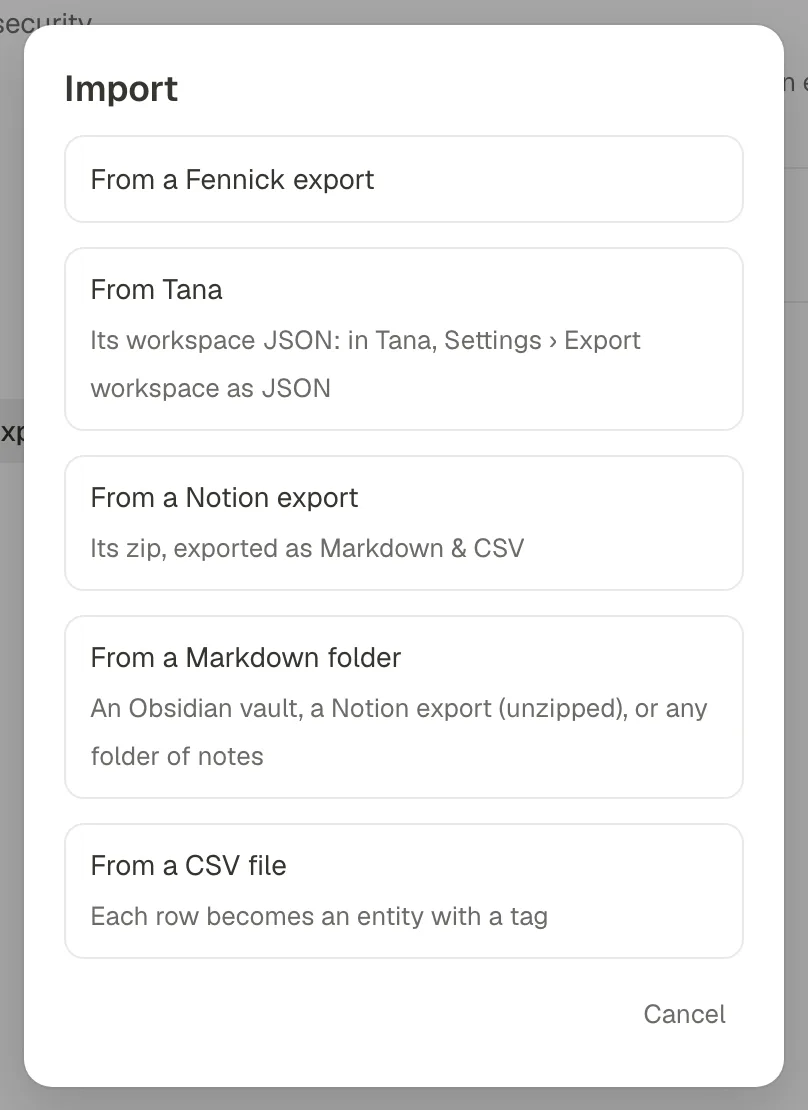
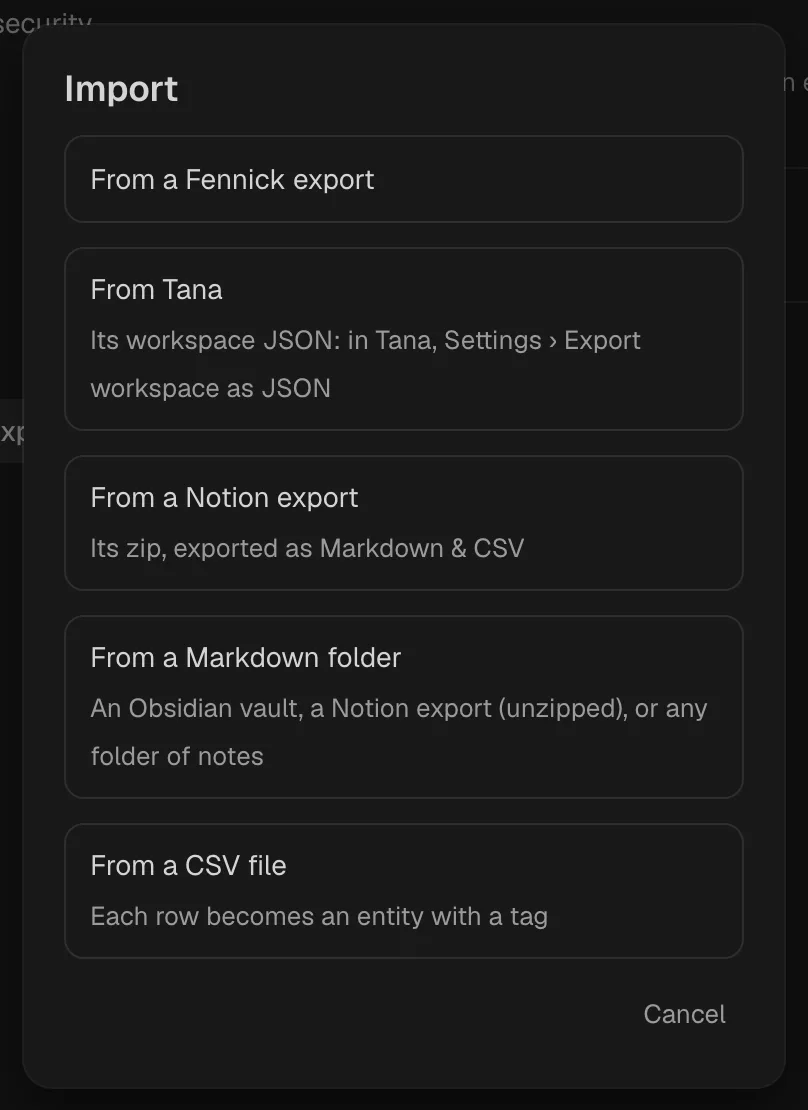
What you can bring in
| Pick | Give it |
|---|---|
| From a Fennick export | A zip from Export everything, or its notebook.json. |
| From Tana | Its workspace JSON. In Tana, open Settings and choose Export workspace as JSON. |
| From a Notion export | The zip. In Notion, export as Markdown & CSV. |
| From a Markdown folder | An Obsidian vault, a Notion export you have unzipped, or any folder of notes. |
| From a CSV file | A .csv or .tsv file, and the tag its rows should wear. |
An Obsidian vault or a Markdown folder
- Each note becomes a page. Links, tags and properties come in too.
- A
[[link]]becomes a mention. A link to a note that doesn't exist makes a new empty page with that name. - A
#tagin a note tags its block. A note'stagsproperty tags the page, and its other properties become fields on the page. - A property whose values are only links, such as
goal: "[[Plan]]", becomes a Select from tag field that links to those pages. Links mixed with other words stay Text, and the links still work. [[Note#Heading]],[[Note#^id]]and[[#Heading]]link to that heading or block. If the note has no such heading, the link goes to the note's page.==words==become a highlight of their own, with the note's page as its Source. Bold inside them stays bold; in code they stay as written.- A footnote's number becomes a highlight tagged
#footnote, with the footnote's words as its note. Both[^1]footnotes and^[inline]ones come in. - A
%%comment%%becomes a callout block beside the block it was in. A comment that stands alone, over one or more rows, becomes a callout in its place. In code, it stays as written. - Lists keep their nesting, and
- [ ]makes a to-do.
A Notion export
- In Notion, export as Markdown & CSV. An HTML or PDF export has no notes Fennick can read, and it says so.
- Pages nest as they did in Notion, named without Notion's long id.
- A link to another page becomes a mention of it.
- A database comes in as a tag, with a field for each column. Each row is an entity with its values, and the tag's page shows them as a Table.
A CSV file
- Type the tag in the sheet. Each row becomes an entity with that tag.
- Its name comes from the Name or Title column, or the first column. The other columns become the tag's fields.
- Bringing in the same file again adds only what is new. A cell you emptied in the file doesn't change what's here.
A Tana export
In Tana, open Settings and choose Export workspace as JSON. In Fennick, choose From Tana and pick that file. Pages, days, blocks, tags and fields come in, and Tana's supertags come in as tags with their fields. Each field keeps its Type: dates with their times and ends, numbers, checkboxes, options and links. A date written in a block opens its day. A tagged block comes in as an entity, where it was. Descriptions, AI chats and transcripts come in as blocks, and pictures as links to where Tana keeps them. Its Trash, Schema, searches and views are excluded; field defaults, formulas and tag icons are skipped. Tana's other exports, its Intermediate Format and Markdown, aren't read as a Tana export.
A Fennick export
Fennick reads notebook.json. Changes made to the export's Markdown or CSV files don't come in. The same date's days become one day, and the same name's tags one tag. A block you've edited since keeps your words, and the export's are listed on the summary page.
Stop, go again, undo
- Stop: what came in stays. Import it again to carry on from there.
- The same folder or file again brings in only what's new. If nothing is, it says “Nothing new.” A note you changed in the folder keeps Fennick's words, and the difference is listed on the summary page for you to look at.
- A folder with the same name: Fennick asks whether it is the same folder, so it brings in what changed, or a different one.
- Undo this import, at the top of the summary page, takes the whole import away, on your other devices too.
- In the Op Log, an import is one step, such as “Imported from plants.csv”, and its Undo is one more.
Export
In Settings, Import and export, click Export…. Export everything makes one zip of your whole notebook:
- every page as Markdown (open the folder in Obsidian and the links work);
- a table for each tag as CSV;
notebook.json, with everything in it.
Include pictures and files adds those too. To export one page, pick Export as Markdown in the page's ⋯ menu. A block that shows on several pages is written once in full, with a link on its other pages.
In the iPhone app, import and export are (coming).