
 Fennick
Fields
A field holds one value on an entity: a status, a due date, a phone number.
A tag's fields go on every block with that tag. A page or a block can also have fields of its own.
Add a field to a tag
- Open the tag's page and click Template. Or in a table, click + at the end of the headings.
- Click Add a field and type its name.
- Pick its Type. The field is added.
Every block with that tag now has the field.
On a computer, a table's + makes room first: a New field column opens at the table's end, with Add a field under its heading. It becomes the field's own column when the field is made, and goes away if you make nothing.
A Select from tag or Select from query field shows a short form before it is added: Limit, Two-way (on to start with), and the name and Limit of the field on the other tag. Press Enter or click Add. With no name typed, the field is named after what it points at, such as Project.
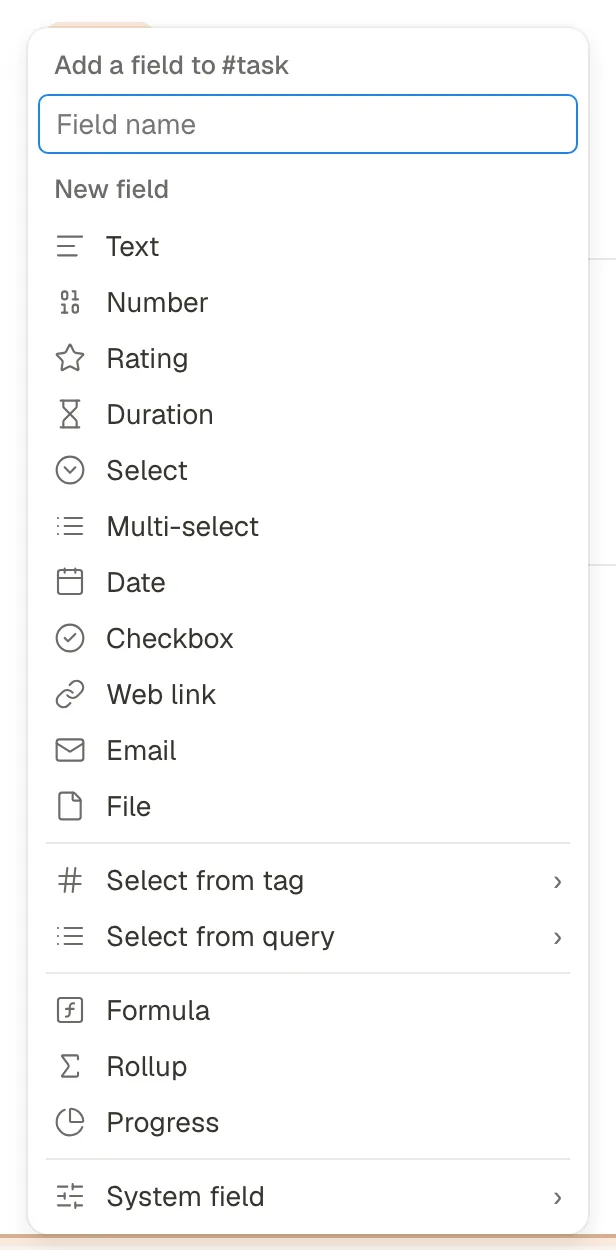
The Types
| Type | Holds |
|---|---|
| Text | Any words. |
| Number | A number. |
| Rating | A score, shown as icons such as stars. |
| Duration | A length of time. |
| Select | One of a list of options. Each option gets a color. |
| Multi-select | Any number of options from a list. |
| Date | A day, week, month, quarter or year, picked from a calendar or typed. It can have a time and an end date, and repeat. |
| Checkbox | Ticked or not. |
| Web link | A web address, opened with a click. |
| An email address. | |
| File | Files, as entities tagged #file. |
| Select from tag › | A link to an entity with the tag you pick (such as a #project), or to Any page or block. |
| Select from query › | A link to one of the entities a query lists. New query… types its query right there, read as you type; a named query is listed too. Type › Select from query › Its own query changes it later. |
| Formula | A value worked out from the entity's other fields. |
| Rollup | A value worked out across the entities a link field reaches. |
| Progress | How much of what is inside it is done. |
| System field › | A field Fennick keeps for you, such as Created or Word count. See Fields Fennick keeps. |
A new Select field starts with no options: type one in its value box and pick New option “…”.
A field's menu
Click a field's name, on any page or on the template, for its menu. Its first row says what the field is: Tag field · #name, This page only, This block only, or Shared with other places.
- Rename and Type change the field everywhere it is: a tag's field and a shared field on every page, a field of this page only here.
- Changing a field's Type never loses a value. Values that don't fit the new Type are kept, and a block says how many; change the Type back and they show again. ⌘Z puts the old Type back.
- Starting value (on a tag's field): see Starting values.
- Display: see Where a field shows.
- Move up and Move down change its place among the tag's fields.
- Remove field… takes a tag's field off the tag and off every block that wears it. Fennick asks first; undo puts it back. On a page's own field, Remove field takes it off this page or block.
Some Types have more:
| Type | Settings |
|---|---|
| Number | Show as: Number, Slider, Bar or Ring. Format: Number, Number with commas, Percent, or a currency (US dollar, Euro, Pound, Canadian dollar, Australian dollar, Yen, Swiss franc, Indian rupee, Mexican peso). Decimals. On a Slider, From, To and Step: type any numbers. |
| Duration | Unit: Seconds, Minutes, Hours, Days, Weeks or Months (30 days). A plain number you type counts in the Unit. Show as: 1h 30m, 1:30, 1 hour 30 minutes or 90 minutes. |
| Rating | Icon: pick any icon. Out of. Half icons. |
| Select, Multi-select | Options: click an option to change its color. |
| Checkbox | Show as. |
| Select from tag, Select from query, File | Limit: One or Multiple. Two-way. |
| Formula | Edit formula. Two-way, when the formula is a chain such as Project's Lead. |
| Rollup | Edit rollup. Two-way, on Show values of Name. |
| Progress | Show as: a bar, a percent or a ring. Edit formula. |
Limit: on Multiple, a block can hold several entities: the picker stays open, and each one you pick goes on or comes off. Changing Multiple to One, when blocks hold more than one, asks first and says how many; Continue leaves each block only its first one, and ⌘Z puts them all back. A Multi-select changed to a Select does the same.
Starting values
A tag's field can fill itself in on each new entity. Open the field's menu and pick Starting value. It is worked out when the entity is made, and never replaces a value already there. The template shows the choice in the field's value.
| Type | Starting value |
|---|---|
| Date | Today, Now, The day it's made on, In some days… |
| Number | The next number |
| Select | A random option |
| Select from tag | The page it's made on, The nearest #project above it, A random #project |
| Select from query | A random one from its query |
Every Type also has None and Same as the block above, which copies that block's value. To start every entity on the same value, set it in the field's value on the template. Picking a Starting value takes that fixed value off.
A duplicate works out its Today, Now, In some days and next number again.
Formula
A Formula works out its value from the entity's other fields. Pick Formula as the Type and its editor opens: the same formula builder as ?? in a block (see A formula in a block). Type the formula; the field is made when you click Done.
- The list beside the box starts with this tag's fields, then Inherited, the fields every entity has (such as Created and Edited), then every function, in groups: Logic, Maths, Text, Dates and Other. A word you type narrows it to what starts with that word.
- The one picked is explained beside the list, with an example such as
DateAdd(Due, 7, "days"). Enter, Tab or a click puts it in. - A field shows as a chip in its tag's color. A field name you type becomes a chip once you go past it. A name with a space is written in square brackets:
[Due date]. - Under the box is this entity's answer, or the problem in plain words. Done stays off while there is a problem.
- ⌘Enter or Done saves. Esc writes nothing.
- On a phone the editor is a sheet, and each row has its help under its name.
- Capitals don't matter:
roundisRound. The functions are in Functions.
A Formula can name a field's field: Project's Lead. After the 's the list shows that tag's fields. Ending on a link field it gives those entities, as links; ending on another field, that field's values. It works inside a longer formula too, such as if(empty(Note), Project's Lead, empty). Two-way is offered only when the chain is the whole formula.
A Formula can read another entity, and what a query lists, too. Type [[ and a name for an entity: [[Ember]]'s Weight. Over a query, count, sum, average, list, min and max take a query, written as in Queries, or a saved query: sum(#walk, Steps), count(#task.Where(Done = false)). It is worked out again whenever what it reads changes.
Functions
| Group | Functions |
|---|---|
| Logic | If, Ifs, Switch, And, Or, Not, True, False, IsBlank, IsNotBlank, IfBlank, IsNumber, IsDate, IsText |
| Math | Round, RoundUp, RoundDown, Floor, Ceiling, Trunc, Abs, Sign, Min, Max, Median, Product, Mod, Power, Sqrt |
| Text | Concatenate, Len, Lower, Upper, Trim, Left, Right, Middle, Contains, StartsWith, EndsWith, Replace, Repeat, Join, Split |
| Dates | Today, Tomorrow, Yesterday, Now, Date, DateAdd, DateBetween, FormatDate, Year, Month, Day, Hour, Minute, Weekday, WeekdayName, MonthName, WeekNumber, EndOfMonth |
| Lists | First, Last, Nth, Unique, CountUnique, CountAll, ReverseList |
| Over a query | Count, Sum, Average, List, Min, Max |
| Other | ToNumber, ToText, Progress |
Some have a second name that reads the same: Length is Len, Concat is Concatenate, Empty is IsBlank, Substitute is Replace, Pow is Power. In the formula builder, each one shows its help and an example.
A formula in a block
A formula can sit in your writing, with its answer in its place, kept up to date as what it reads changes.
- In a block, type
??where the answer should go: at its start, after a space, or inside a word. The formula builder opens there. - Pick or type the formula, such as
#walk.Steps.Sum(). Its answer shows after = as you type. - Press Enter. The answer takes the formula's place: This week I walked 12,180.
A formula can be wrapped or chained: Sum(#walk, Steps) and #walk.Steps.Sum() are the same, and so are Count(#task) and #task.Count(). A field of one entity is [[Ember]].Weight. A query in it is written as in Queries: #walk.Where(Date.InLast(7, days)).Steps.Sum(). The functions are in Functions.
The builder lists what can come next: your tags, saved queries, this page's fields, entities and functions, and after a tag and a ., its fields and steps. ↑ and ↓ move through the list, Tab puts one in, and the one picked is explained beside the list. See The builder.
- A query, such as
#book.Where(Status = Reading), puts in the names it lists. In an empty block, it makes a query block instead. - With nothing typed yet, a space, a punctuation mark or a third
?leaves??as letters. Esc or Cancel leaves??and what you typed. - Add name, at the top of the builder, names it, such as Spent: the formula becomes a Formula field of the page it is on, a named value any page can find by name.
- On a phone the builder is a sheet from the bottom, and the keyboard bar's ?? key opens it.
The answer is one weight heavier than the words around it, and has a soft Stone color behind it while the caret is in its block or the mouse is on it. Bold, a color or a highlight from the toolbar styles it as one piece.
For one field of one entity, type [[ and its name, such as [[Ember, then › or Tab. The list shows its fields; pick Weight, and the block says Ember weighs 4.2 on every device, and follows when Ember's Weight changes. The block counts as a mention of Ember.
Change an answer
Point at an answer and it says Right-click to edit formula. Right-click it, or hold it on a phone, for its card. It opens small, with the formula and its answer; what can come next shows once you type, and ⤡ opens the whole builder.
- At the top: Add name, and f, which shows the formula as words in place of chips.
- The formula, as chips, to change with the same list as
??. - Its answer after =, with its Type's icon. For a number, ⌄ sets its decimals and the 1,000 separator.
- ⤢ opens it larger.
- ⋯ has Go to, when it reads an entity, and Make plain text, which keeps the answer as words.
- Enter or Done puts the change there.
A click on an answer puts the caret there, as in any words. ⌘-click goes to what it reads.
==words==is a highlight.==never starts a formula.- If what it reads goes to the Trash, or its field is removed, it shows the names it reads, such as Ember › Weight, grey and struck through, never an old number. Its card's ⋯ has Restore.
- Renaming a tag or a field changes the formula's words with it.
- A query in the old words, such as
#walk where Date is this week, isn't read any more: write it in the formula language,#walk.Where(Date.In(ThisWeek())). See Queries from before. - A Markdown export writes the answer, with the formula kept beside it, so the file reads anywhere and Fennick's import makes the formula again.
- Agents read the answer and the formula, written
{=…}, and can write one the same way; one that doesn't read is refused with the reason. See People and agents.
Rollup
A Rollup follows a link field and works something out from what it reaches: the hours of a project's tasks, say. It is a stack of pickers, and the field is made when you click Done.
- Link picks a link field. A link pointing here is named by what it brings, such as Tasks on
#project, with #task's Project beside it. - Field lists the fields of the tag that link reaches. Pick a link field there and another Field appears under it, so a project can reach its tasks and then their people. Pick a plain field, or Name (the entities themselves), and that's the last pick.
- Calculate says what to do with them:
| Calculate | Gives | Needs |
|---|---|---|
| Show values | Every value, repeats too. Of Name, the entities as links. | |
| Show unique values | Each value once. | A field |
| Count | How many. | |
| Sum, Average, Min, Max | A number. | A Number field |
| Earliest, Latest | A date. | A Date field |
| % checked | The share ticked. | A Checkbox field |
A new Rollup starts on Show values. With Show values of Name and two links or more, Two-way gives the tag it reaches a field listing what reaches each entity. That field is worked out, so it can't be typed into.
Progress
Progress shows how much of what is inside an entity is done. It counts its to-dos, and any entity inside it whose tag has a checkbox. It is made as soon as you pick it. Show as picks how it looks. Edit formula narrows what it counts.
Two-way
A two-way link shows on both sides. If a task's Project points at Kitchen renovation, Kitchen renovation lists that task.
- Click the name of a Select from tag, Select from query or File field.
- Switch on Two-way.
The other tag gets a field named after this one's, such as Tasks on #project. The two stay in step: set one side and the other changes. Rename it as you like. A new Select from tag or Select from query field starts with Two-way on. A long list shows how many there are and the first 50, then Show all.
A Formula that is only a chain, such as Project's Lead, can be two-way too: #person gets a field listing the tasks that reach each person. That field is worked out, so it can't be typed into.
Add a field to any block
Type a name and :: on a block, as in Status::. The field goes to what the block sits in: the page, or the block it is indented under. Pick a field you already have (the same field as on the other pages), or New field “Status”, a new field of its own on this page only. A field of that exact name you already have is listed first; with none, Enter makes the new one. The words before :: leave the block, and the block goes if nothing else is on it. :: alone opens the same menu with an empty name. Add a field, the last row of a fields box, adds one to that box's block or page.
- A new field asks for its Type. Then its value opens straight away.
- A Text, Number or Web link value is typed right in its row: click the value, type, then Enter or click anywhere else to keep it. Esc lets the change go.
- A field with no value stays while you work, and is kept once it has one.
- On a phone, the name, the Type and the value each open above the keyboard.
Where a field shows
Each field on a tag has a setting for where it shows. Open the field's menu and pick Display:
- Before the name. On a Checkbox, its box sits before the block's words, as
#task's Done does. Other fields also have Before the name: full and Before the name: name and value. - On the block: just its icon
- On the block: short
- On the block: full
- On the block: name and value
- When unfolded. It shows in the block's fields box when you unfold the block, wherever the block is, and on its own page.
- Only on its page. It shows only when you open the block's own page. Unfolded under another block, or on another page, it stays out of the fields box.
Until you choose, a tag's first two fields show in full on the block, unless they are Text or Select from tag. The rest show when the block is unfolded.
Fields Fennick keeps
Add a field › System field lists fields Fennick keeps for you on each block: Created, Made on, Age, Edited, Created by, Edited by, Mentions, Blocks under it, Progress, Word count, Characters, Reading time, Files, Completed on, Status changed on, Edits, Last opened and Link.
Each one you add has a row among the tag's fields, with a few words on what it is. Its menu has Display (Before the name, After the name or Hidden) and Remove field. Hidden keeps it in the fields box and off the block.
A page or a block with no tag can have them too: type :: on an empty block, or click Add a field in its fields box, and System field is the last row. Typing a name, such as word, finds them. One you pick shows in that page's or block's own fields box, and ⌘Z takes it off.
A page's fields
A page shows its fields under its title in one of three ways. Open shows every field, one row each, then Add a field. Inline shows one block: each field where it shows on a block, with “3 more” for the rest (click it to see them all). A Checkbox shown before the name puts its box before the page's title. Hidden shows nothing.
The fields button (a small table, at the top right of the page, beside the star) steps Open → Inline → Hidden. Its name says the next step. Right-click it or hold it to pick one, or choose Fields in the page's ⋯ menu. Fennick remembers the choice for the page on every device. The right panel's Fields view still shows them all.
Change a value
- Click a value on the block. A small box opens: options as colored chips, a date picker, or a text box. Clear empties it.
- Point at a block to see Add due (and so on) for its empty fields.
- Unfold a block to see its fields box: each field's name and value. Inline, the box shows six fields, then “N more fields”.
- A date in the past, on a block not yet ticked, shows as late.
- A Multi-select shows every value as a chip. Click them to open the list: picking an option adds it, picking a ticked one takes it away. A new option you type is made and picked in one step.
- A web link opens in a new tab when you click it. To change it, click the pencil beside it, or anywhere else on its row.
- Each field shows the icon of its Type: a Select from tag field shows a hashtag, a Web link field a link.
Dates
A date opens on a calendar: its month, always six weeks, with the days before and after faint. Today is in the calendar's header. Click a day. Click the month, the quarter or the year in the header to pick that instead. Or type in the box, or press ↓ and walk the days with the arrow keys.
A Date field can hold a day, a week, a month, a quarter or a year:
| Type | Gives |
|---|---|
tod, tom, fri, nov 3 | A day. |
next week, week 46 | A week. next week also offers the day seven days on. |
nov 2026 | A month. |
Q4, Q1 2027, next quarter | A quarter. |
2027, next year | A year. |
nov 3 to nov 9 | A range. |
Nov 3 at 10 to Nov 4 at 4, fri 9am to 5 | A range with times. |
10am | A time alone. |
- Time: the box beside the date holds its time.
- Add end date makes it a range: a Start and an End, each with its own calendar and time. Enter in Start goes on to End.
- Repeat lists what fits the date:
Or type a repeat in the box, such as “every Monday”, “monthly on the 7th” or “the 2nd weekday of the month”, and press Enter. It shows as “Mon, Nov 9 · every Monday” or “November 2026 · every month”. On an empty date, words that name a week, a month, a quarter or a year keep that period: “every Q4” shows as “Q4 2026 · every Q4”. Where the words could also mean a day, that reading is a second row, such as “The 6th of every month” under “Every month”. On a date that already holds a day, the day's reading comes first, and a period's row says where the date moves to. A date that repeats also has Don’t repeat and Pause.
On Repeat offers, for example A day Every day, Every weekday, Every Friday, Every 2 weeks on Friday, The 6th of every month, The first Friday of every month, Every Nov 6 A week Every week, Every 2 weeks, Week 46 of every year A month Every month, Every 3 months, Every November A quarter Every quarter, Every Q4 A year Every year, Every 2 years - Ticking an entity whose date repeats finishes that turn, and the date moves on to the next: November to December.
In a query, a date that repeats answers on each of its turns. See A date that repeats.
Fields that point at an entity
A Select from tag field points at another entity, such as a task's Project. The value shows as a link with the entity's icon and color, not as a chip. Click the name to go there. Click beside it to choose another, or None.
Type a name the list doesn't have and the list offers New #person “Cleo Park”. On a Select from query field it says fits its query, and the new entity is made to match: with #person.Where(Role = "Crew"), Cleo Park's Role is Crew.